

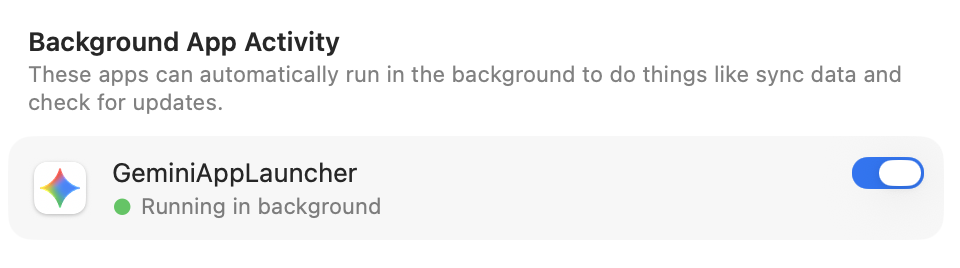
Quitting a Mac app doesn’t always stop everything it’s doing. Some apps leave background processes running to sync files, check for updates, or finish other work. In macOS 27 Golden Gate, Apple makes this activity more visible: you’ll see a notification the first time an app continues running after you quit, and hovering over its Dock icon reveals a Running in Background label. The notification doesn’t mean anything is wrong; the app may be finishing work you asked it to do. If you don’t need its background activity, or suspect it’s slowing your Mac, Control-click its Dock icon and choose Stop Running in Background. To prevent future background activity, go to System Settings > General > Login Items & Extensions and turn off the app under Background App Activity. Be selective: turning off this permission can interfere with syncing or automatic updates. If an app stops working as expected, turn its permission back on.
(Featured image created with ChatGPT)
Social Media: An app can keep working after you quit it. macOS 27 Golden Gate makes that background activity easier to spot, and gives you controls to stop it when it’s no longer useful.
Recent Posts

Oct. 28, 2026
Apple Makes Its First Touchscreen Mac, Plus an M6 MacBook Pro and iMac

Oct. 28, 2026
New iPad mini Costs More: Which Model Should You Buy?

Oct. 21, 2026
Critical PHP Flaws Put Business Websites at Risk—Check Yours Now
Oct. 19, 2026
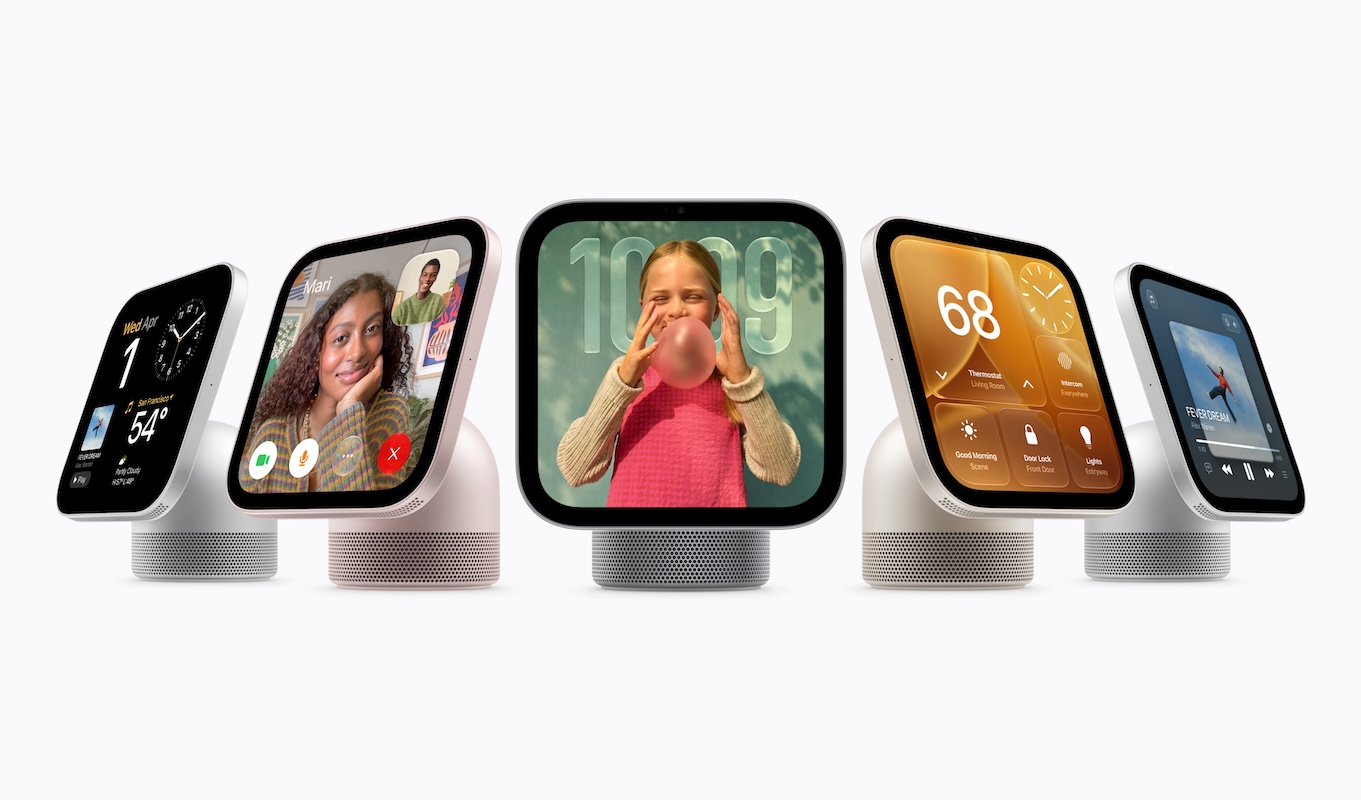
Apple’s New Home Lineup: What to Buy, What to Skip, and What to Wait For

Oct. 02, 2026
Dealing With the MacBook Notch in macOS 27 Golden Gate

Oct. 02, 2026
Check Rosetta After Upgrading to macOS 27 Golden Gate
Oct. 02, 2026
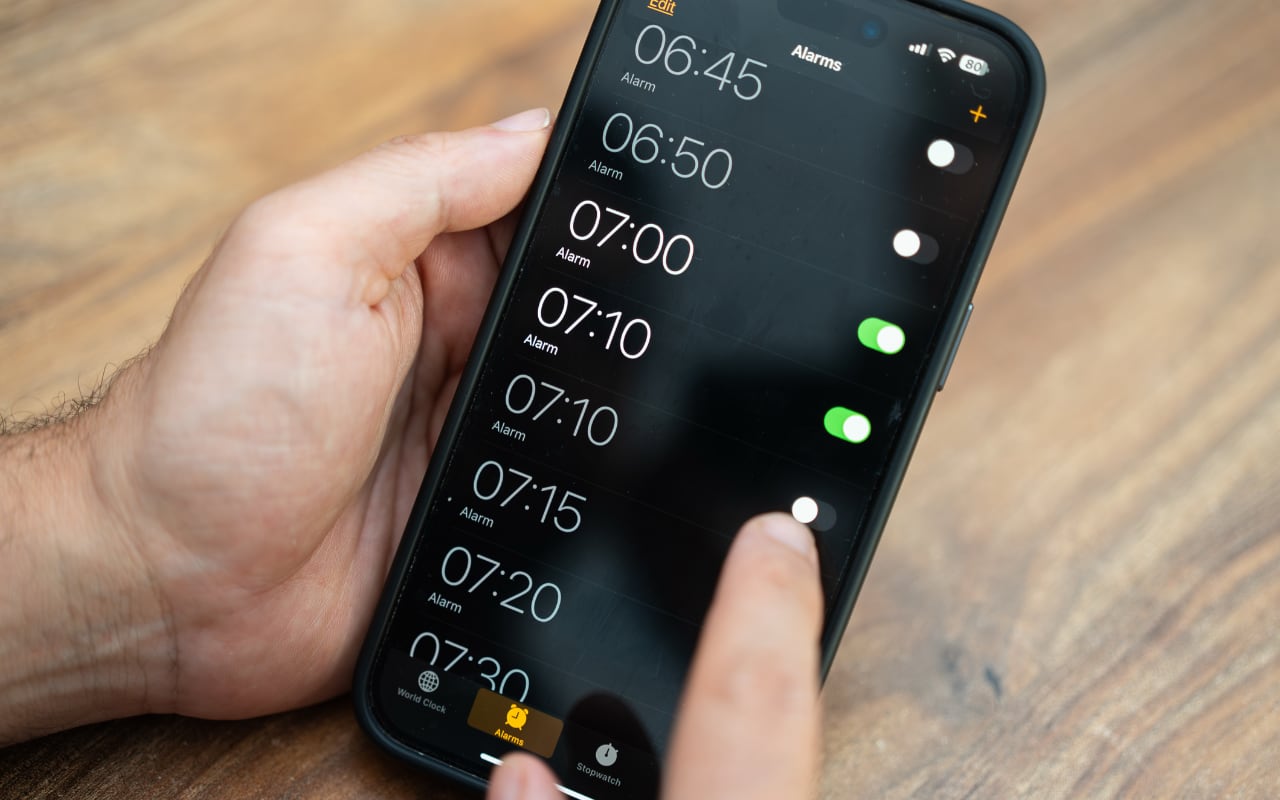
Keep Your Ringer Quiet and Your Alarms Loud in iOS 27

Oct. 02, 2026
You Quit the App. Why Is It Still Running?
Oct. 02, 2026
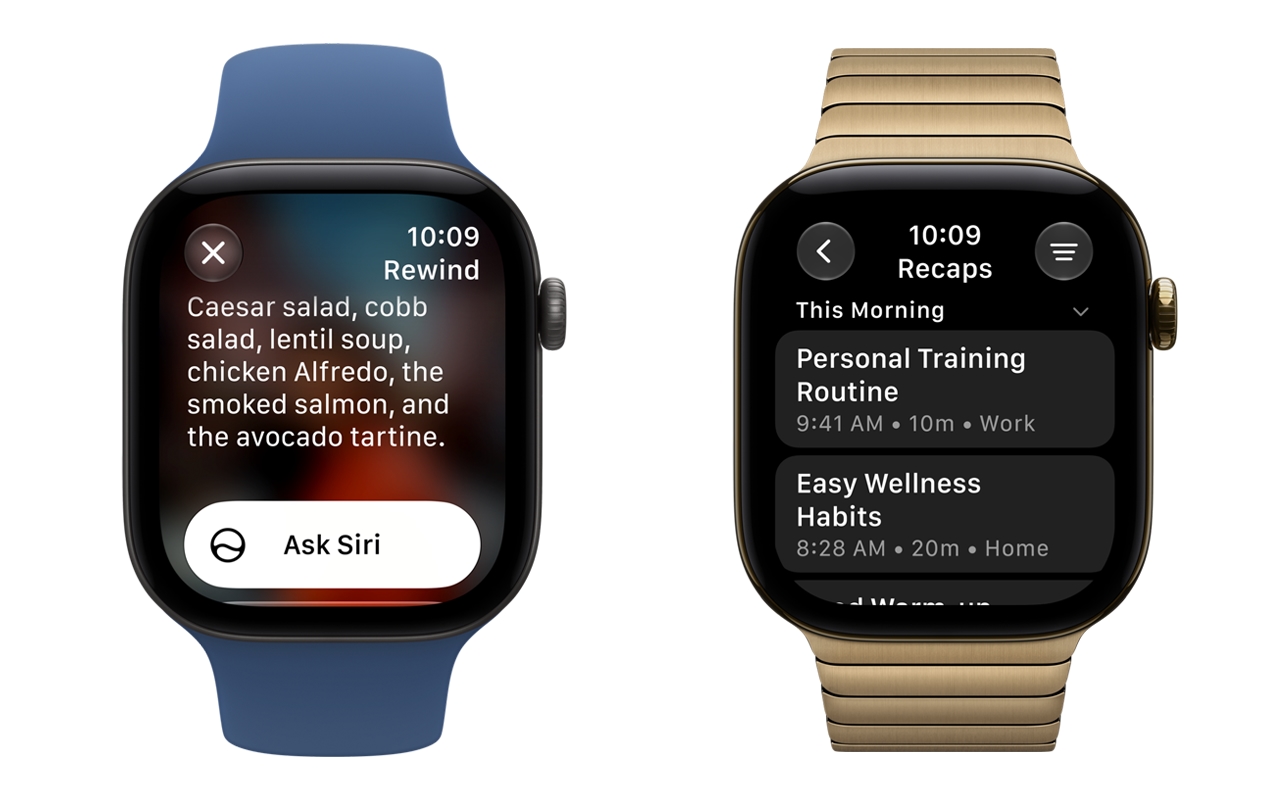
Set Workplace Rules Before Your Apple Watch Starts Taking Notes

Oct. 02, 2026
Still Using Legacy Outlook for Mac? Plan Your Switch Now
View All Posts