

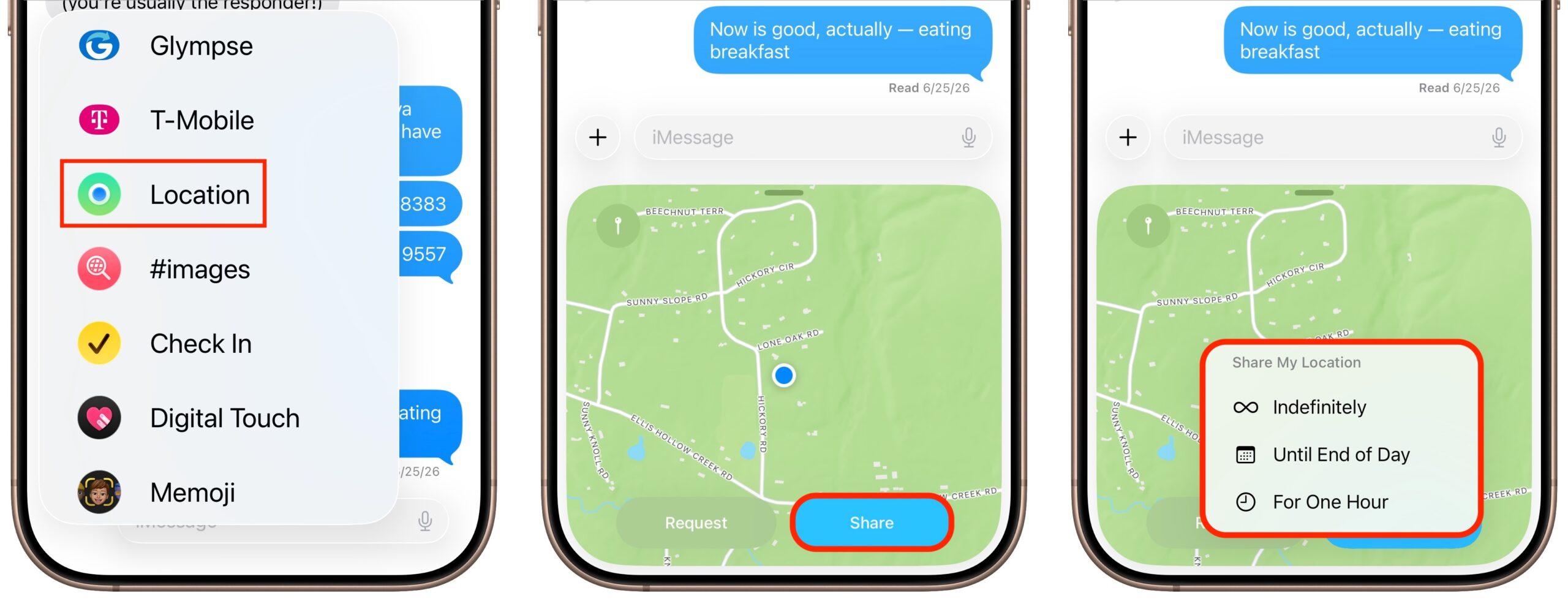
The next time you’re flying, driving, or biking to visit an iPhone-using friend or relative, try sharing your location temporarily so they can check in on your progress without constant “where are you now?” texts. In iOS 17 and later, open a Messages conversation with that person, tap the ⊕ button to the left of the message entry field, and tap Location. In the location-sharing control that appears, tap the Share button, then choose Until End of Day or For One Hour. You can also tap the Request button to ask the recipient to share their location with you. If you pick Indefinitely for the sharing duration and later wish to revoke it, open the Find My app, tap the People list, select the person, and tap Stop Sharing My Location.
(Featured image generated by Adam Engst with ChatGPT)
Social Media: Put an end to the “where are you now?” texts. iOS lets you temporarily share your location with friends and family while traveling—here’s how to set it up in Messages.
Recent Posts
Sep. 10, 2026
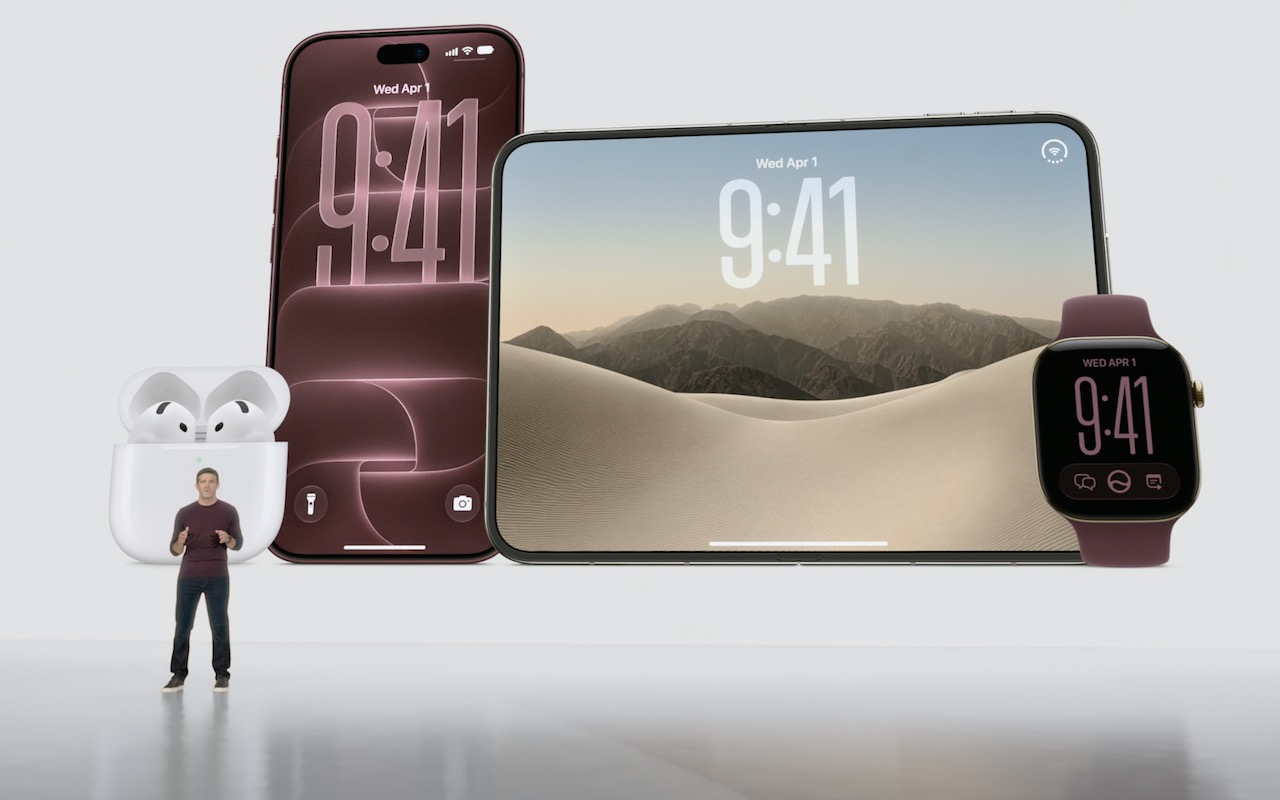
Apple Announces iPhone 18 Pro, iPhone Duo, Apple Watch Series 12 and Ultra 4, and AirPods 5

Sep. 04, 2026
Beware of Scam Party Invitations from Hijacked Accounts

Sep. 04, 2026
Keep a USB Mouse and Keyboard Around for Troubleshooting

Sep. 04, 2026
Find What’s Filling Your Disk with OmniDiskSweeper
Sep. 04, 2026
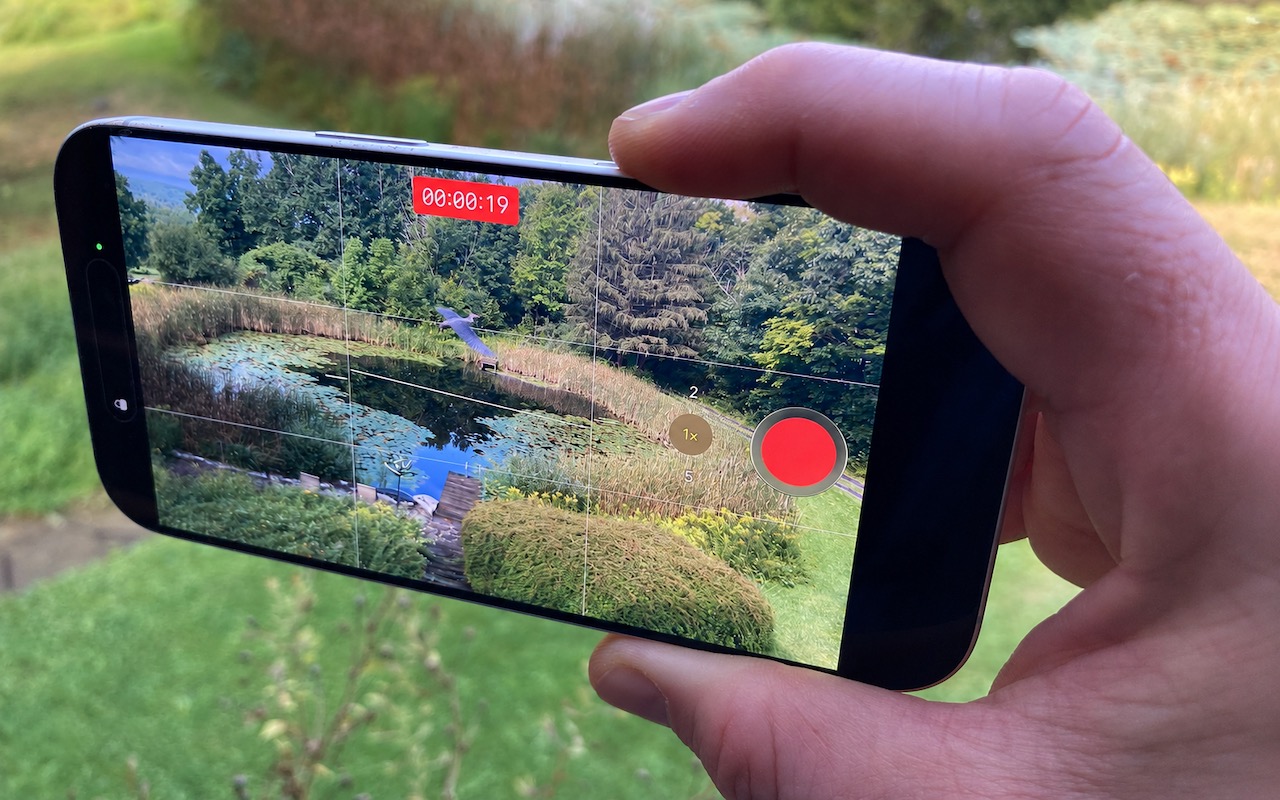
Take Quick Videos with the Camera Control
Sep. 04, 2026
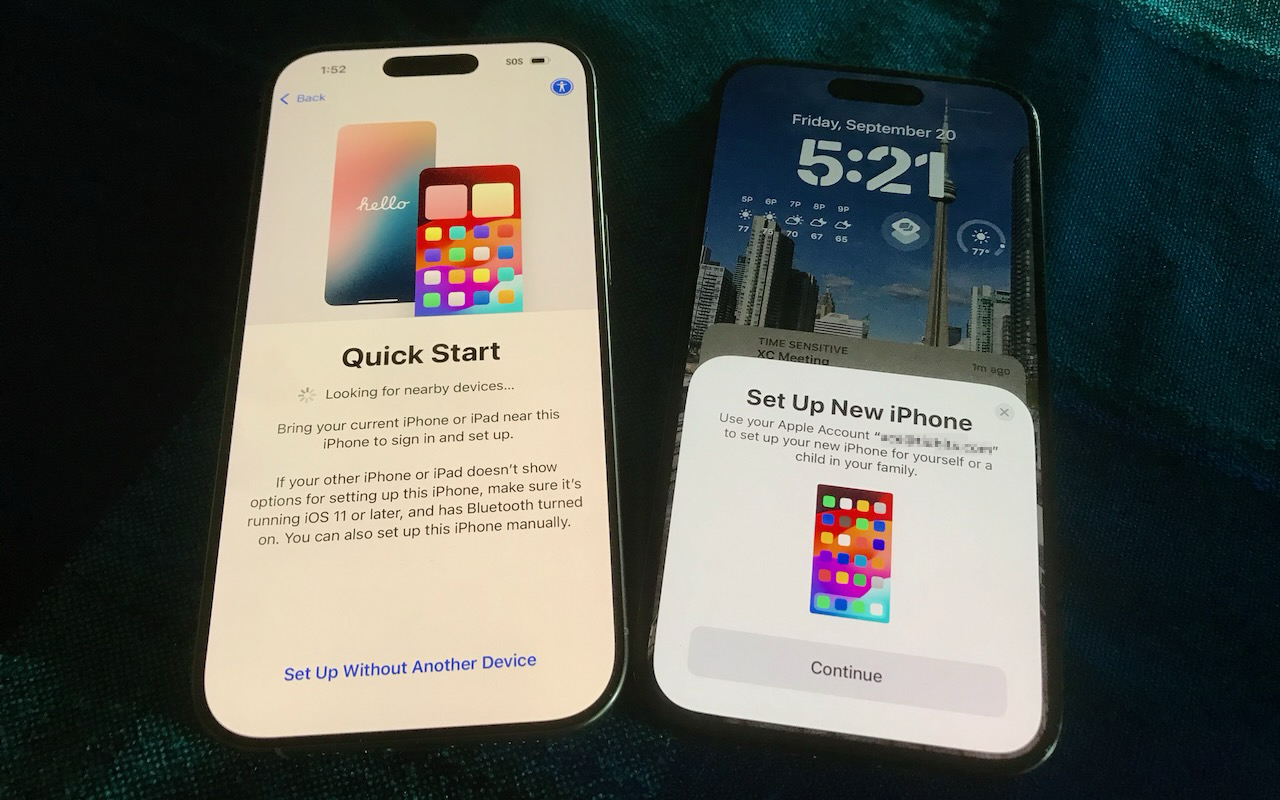
Follow These Steps When Switching to a New iPhone 18

Sep. 04, 2026
When Should You Upgrade to macOS 27 Golden Gate, iOS 27, iPadOS 27, watchOS 27, tvOS 27, and visionOS 27?

Aug. 27, 2026
Apple Updates Mac mini and Mac Studio with New M6 and M5 Ultra Chips

Aug. 07, 2026
Prepare for macOS, iOS, and iPadOS OS 27 by Updating to 26.6

Aug. 07, 2026
WhatCable Reports on Your USB-C Cables
View All Posts