

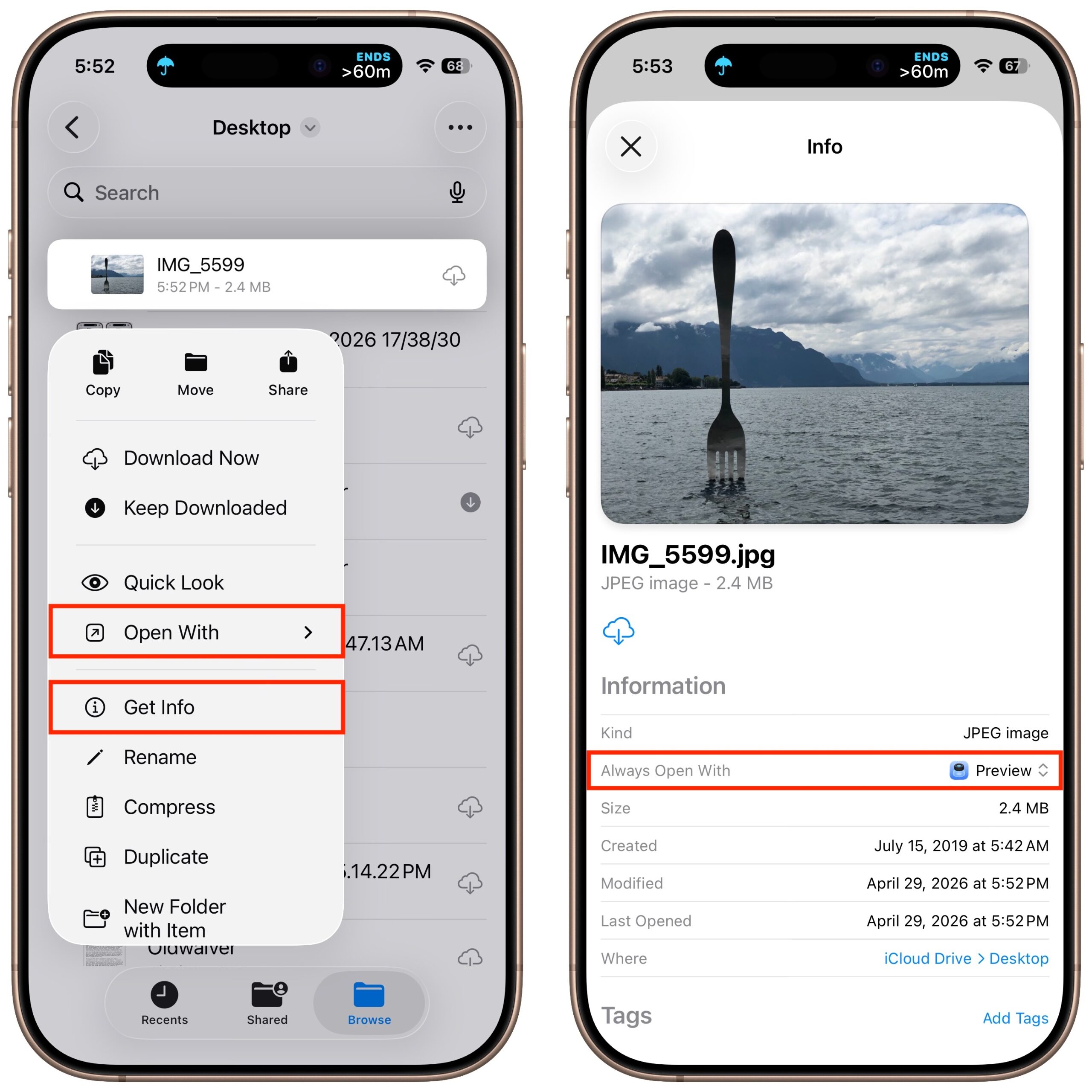
On the Mac, every file type opens in a particular app by default, but it’s easy to open a PDF, image, or text file in a different app. In the Finder’s Get Info window, you can also reset the default app so that, for example, JPEGs open in Photoshop or Affinity instead of Preview. That’s all now possible in iOS 26 and iPadOS 26 as well. In the Files app on an iPhone or iPad, touch and hold a file to bring up a menu. Tap Open With, then select an app to open the file once in a different app without changing the default. To reset the default app for that file type, tap Get Info, then select an app from the Always Open With list.
(Featured image based on an original by iStock.com/Tippapatt)
Social Media: iOS 26 and iPadOS 26 finally let you choose which app opens your files—just like on the Mac. Here’s how to use Open With and set new defaults in the Files app.
Recent Posts

Jun. 09, 2026
10 Reasons to Upgrade to Apple’s Version 27 Operating Systems This Fall

Jun. 05, 2026
Use Fake Contacts to Improve Dictation Accuracy

Jun. 05, 2026
Office 2019 for Mac Goes Read-Only on July 13, 2026

Jun. 05, 2026
Not Sure If You’re Presentable for a Video Call? Try Hand Mirror

Jun. 05, 2026
Use Your AirPods as a Camera Remote

Jun. 05, 2026
When Should You Upgrade Your Apple Devices?

Jun. 05, 2026
How AI Vulnerability Detection Changes Software Security
Jun. 05, 2026
Choosing the Best Mac for a College-Bound Student in 2026
May. 01, 2026
Choose Default Apps for File Types in iOS 26 and iPadOS 26
May. 01, 2026
Never Run AppleScripts from Untrusted Sources
View All Posts