

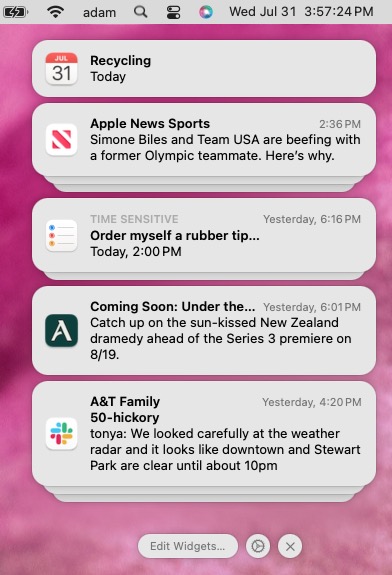
iOS, iPadOS, and macOS all let you specify whether any given app should show no notifications, temporary banners, or persistent alerts: look in Settings > Notifications and System Settings > Notifications. Temporary banners appear briefly and then automatically disappear, which is appropriate for notifications requiring no acknowledgment. But what if you see a temporary banner only as it’s disappearing and can’t read it in time? You can find a historical list of notifications in Notification Center. To open it from the Lock Screen on an iPhone or iPad, swipe up from the middle of the screen. From any other screen, swipe down from the center of the top of the screen. On the Mac, click the date and time in the upper right corner. If your Mac has a trackpad, you can also swipe with two fingers from the right edge.
(Featured image based on an original by iStock.com/Shutthiphong Chandaeng)
Social Media: If a temporary banner disappears from your iPhone, iPad, or Mac before you have a chance to read it, you can find it in Notification Center.
Recent Posts

Jul. 03, 2026
Never Miss a Meeting Again with In Your Face
Jul. 03, 2026
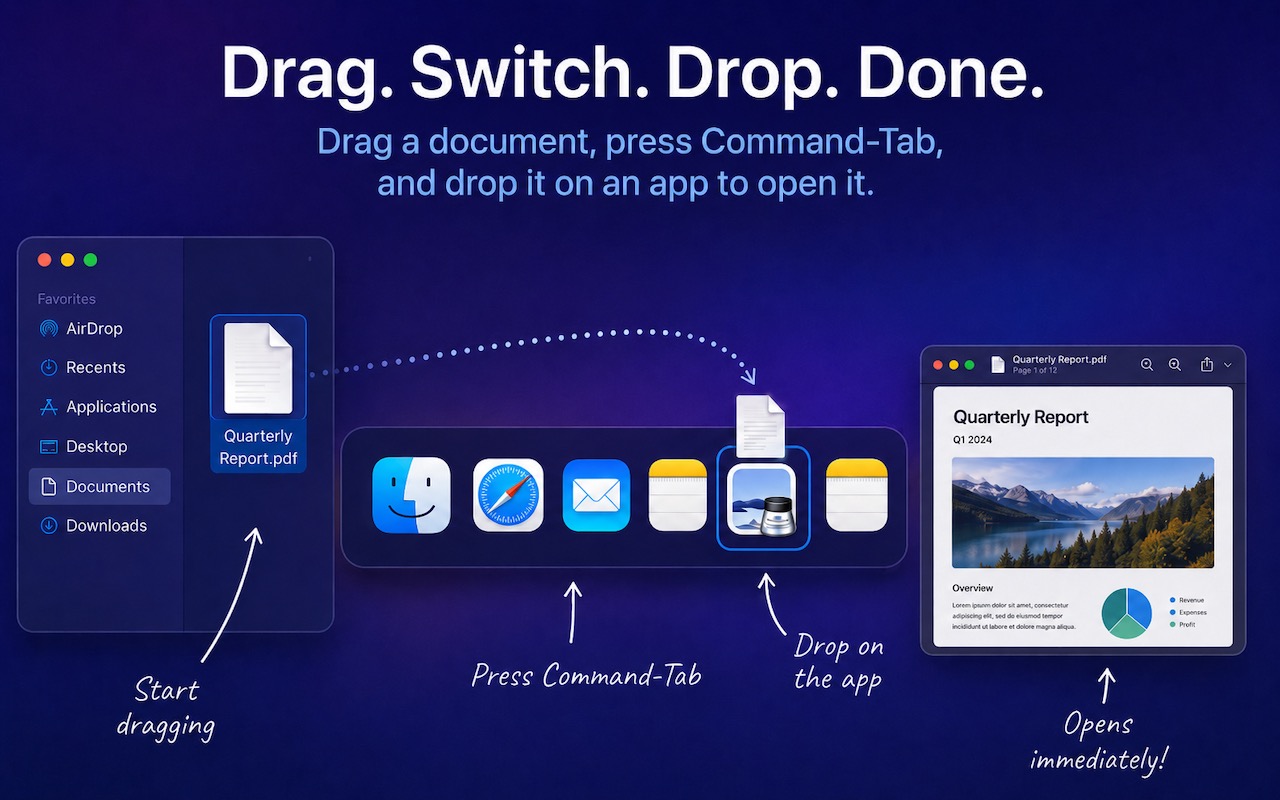
Drag Documents to Apps in the macOS App Switcher

Jul. 03, 2026
Try Swipe Typing with QuickPath on the iPhone

Jul. 03, 2026
Share Your Location Temporarily While Traveling

Jul. 03, 2026
Understanding AI Today: No Longer Just a Chatbot
Jul. 03, 2026
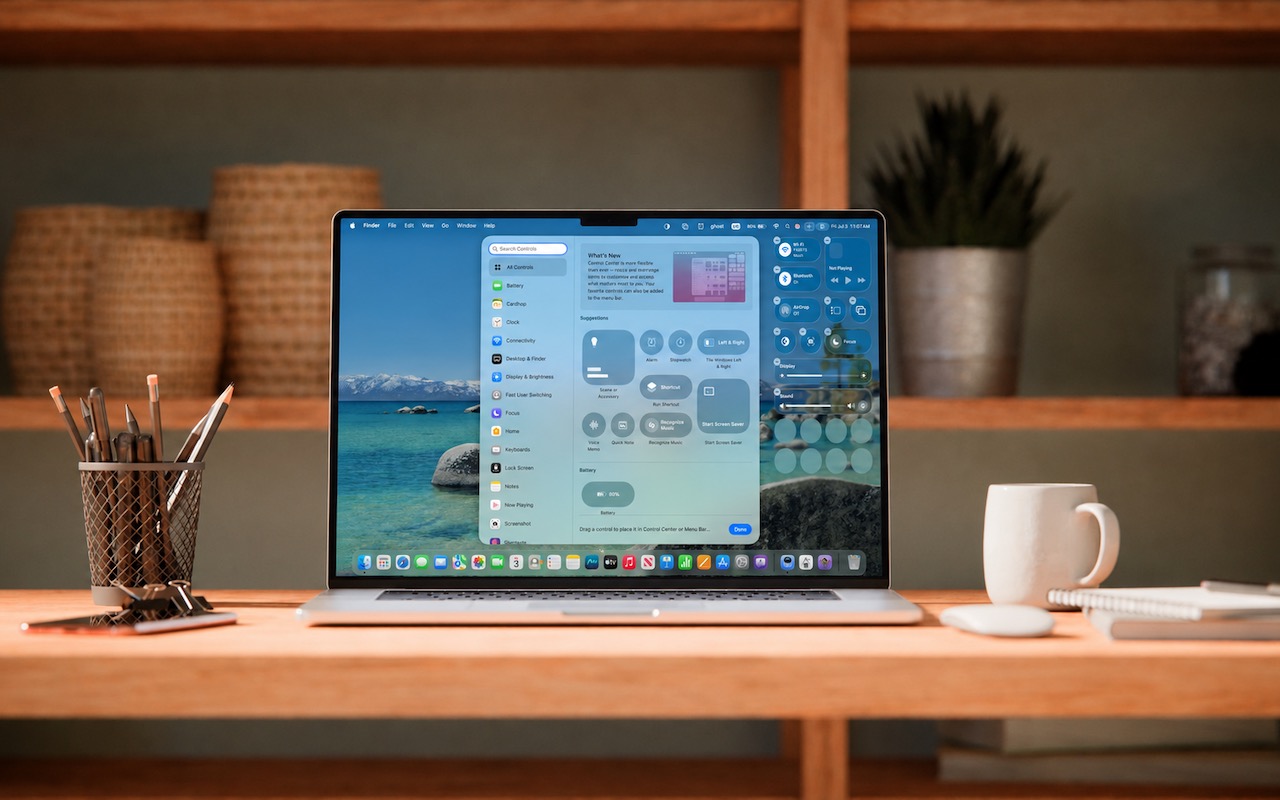
Control Center Is Improved—and Highly Customizable—in macOS 26 Tahoe
Jul. 03, 2026
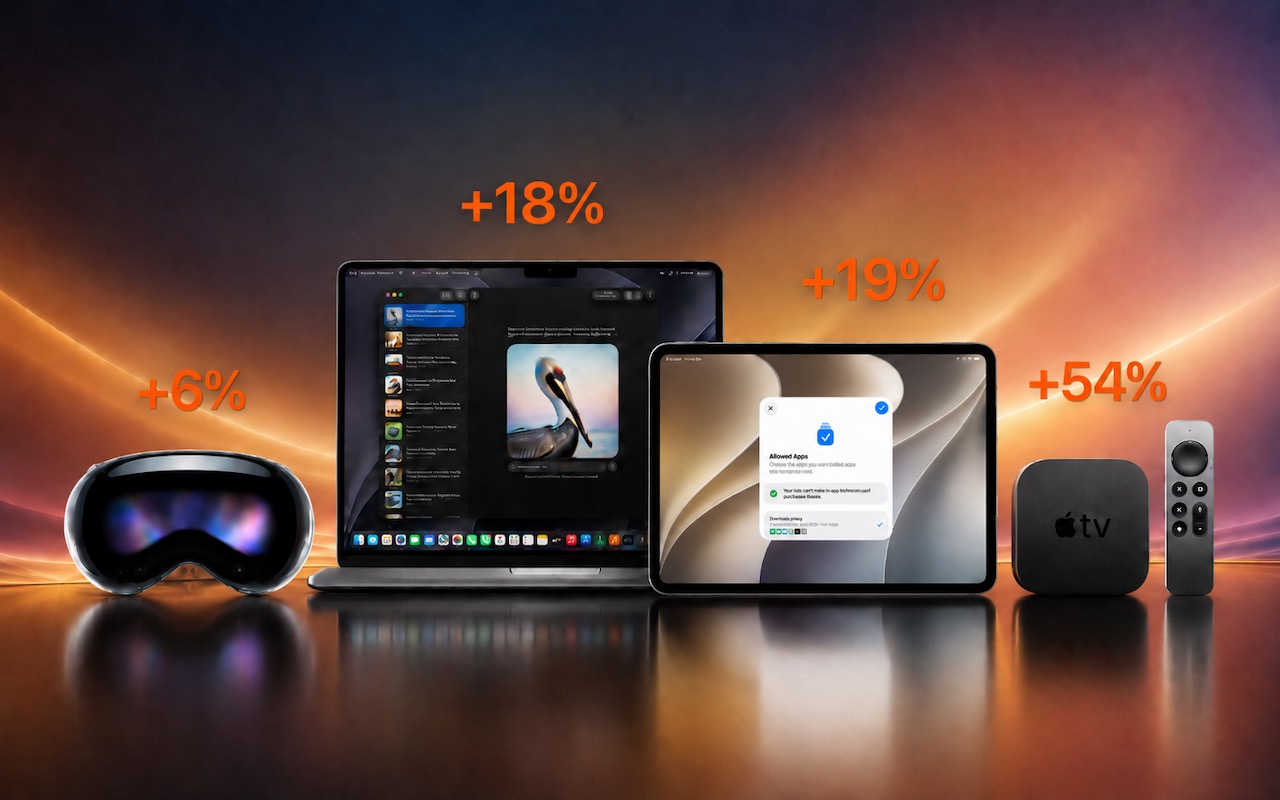
Apple Raises Prices on Macs and iPads, but not iPhones or Apple Watches… Yet

Jul. 03, 2026
How to Share Sensitive Information Securely over the Internet

Jun. 09, 2026
10 Reasons to Upgrade to Apple’s Version 27 Operating Systems This Fall

Jun. 05, 2026
Use Fake Contacts to Improve Dictation Accuracy
View All Posts