

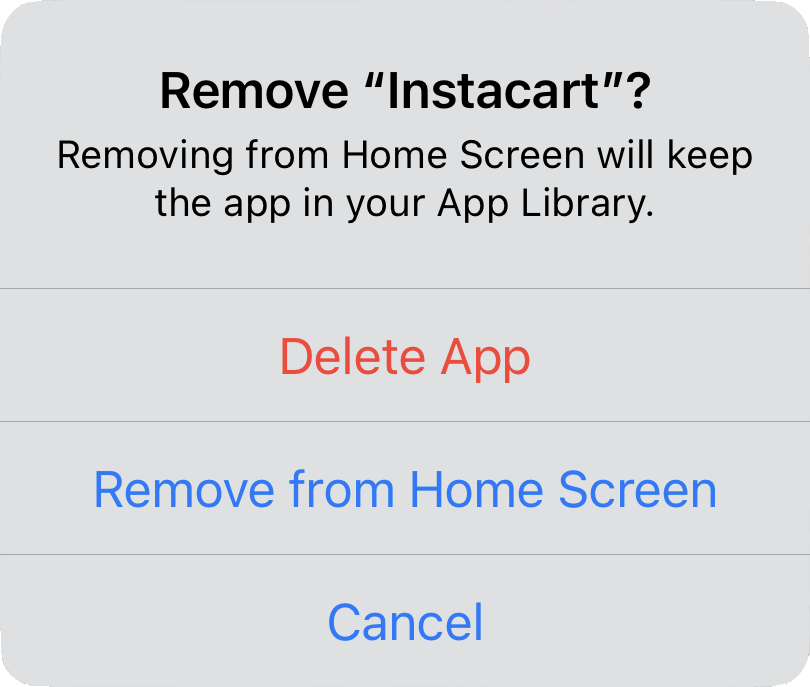
There are many reasons you might want to get rid of apps from your iPhone or iPad. To begin, touch and hold on a blank spot on a Home Screen to enter “jiggle mode.” Then tap the ⊝ icon for any app to see the question about whether to delete the app entirely or merely remove it from the Home Screen. Delete the app if you don’t want to use it anymore or need to reclaim the space it occupies. (You can download it from the App Store again.) Remove the app from the Home Screen if you want to reduce clutter, keep the app on your device, and don’t mind opening it from the App Library (swipe left past all the Home Screens) or from Search (swipe down from the middle of the screen).
(Featured image based on an original by iStock.com/Photosbypatrik)
Recent Posts
Jun. 09, 2026
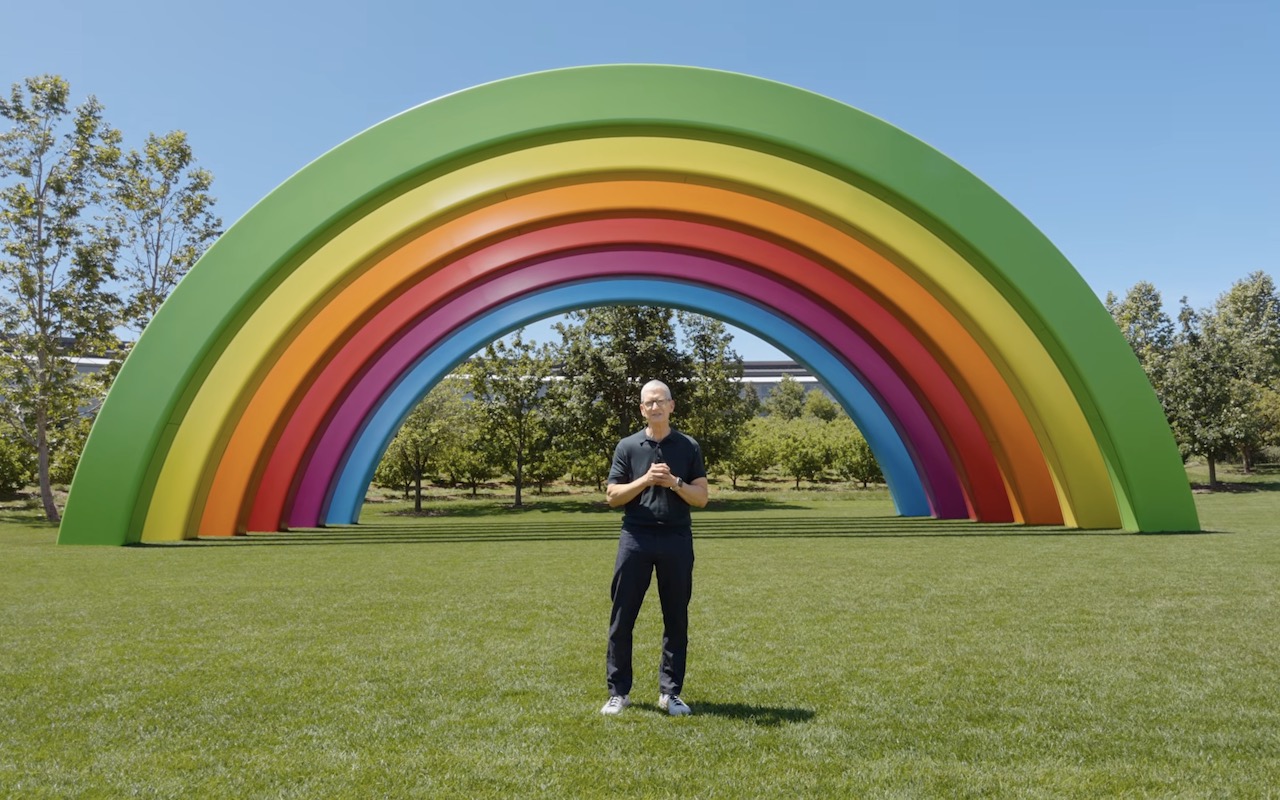
10 Reasons to Upgrade to Apple’s Version 27 Operating Systems This Fall

Jun. 05, 2026
Use Fake Contacts to Improve Dictation Accuracy

Jun. 05, 2026
Office 2019 for Mac Goes Read-Only on July 13, 2026

Jun. 05, 2026
Not Sure If You’re Presentable for a Video Call? Try Hand Mirror
Jun. 05, 2026
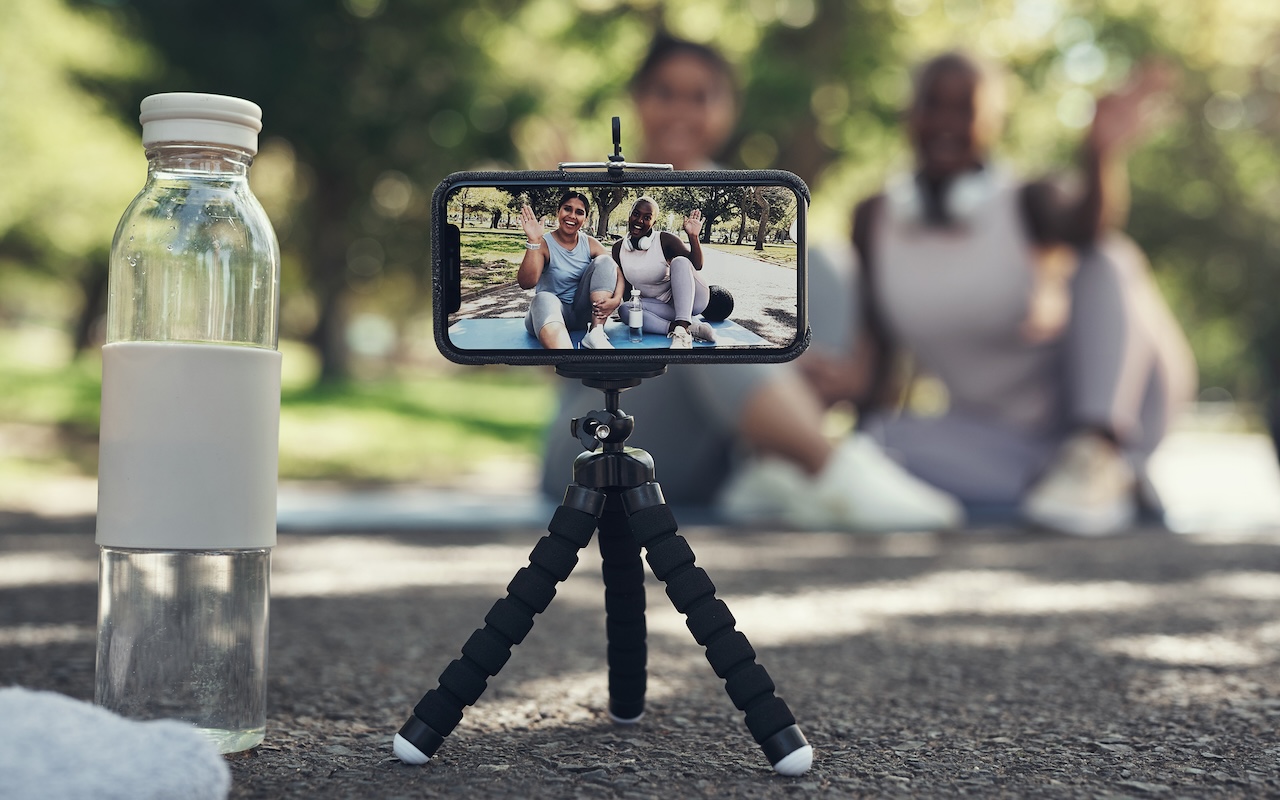
Use Your AirPods as a Camera Remote
Jun. 05, 2026
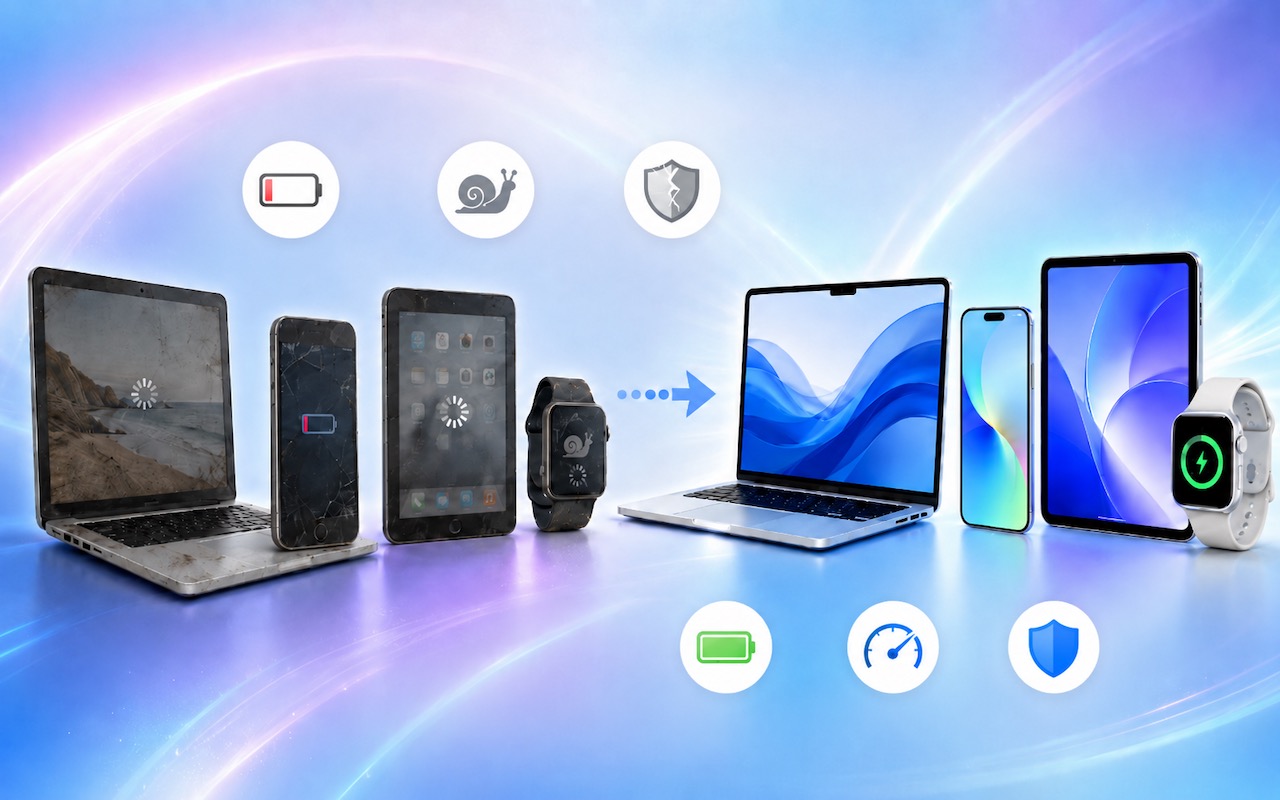
When Should You Upgrade Your Apple Devices?

Jun. 05, 2026
How AI Vulnerability Detection Changes Software Security
Jun. 05, 2026
Choosing the Best Mac for a College-Bound Student in 2026
May. 01, 2026
Choose Default Apps for File Types in iOS 26 and iPadOS 26
May. 01, 2026
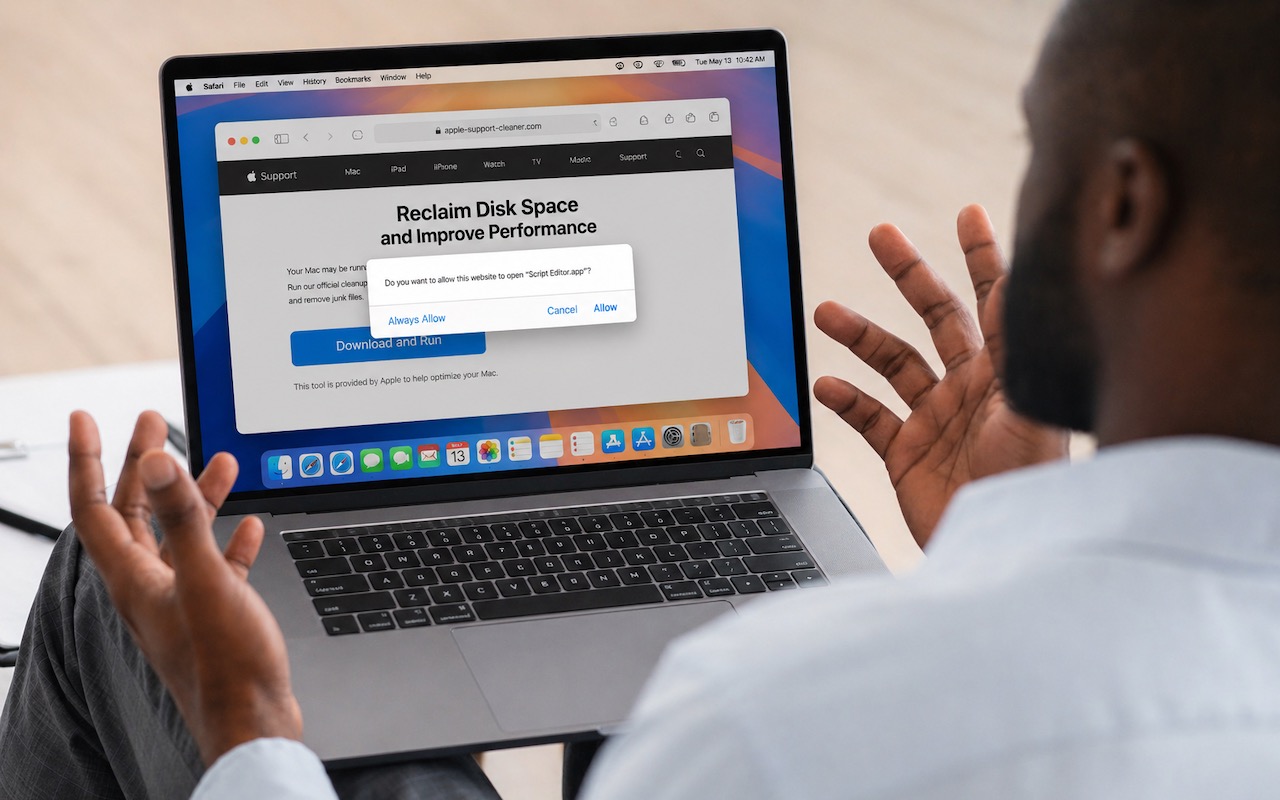
Never Run AppleScripts from Untrusted Sources
View All Posts