

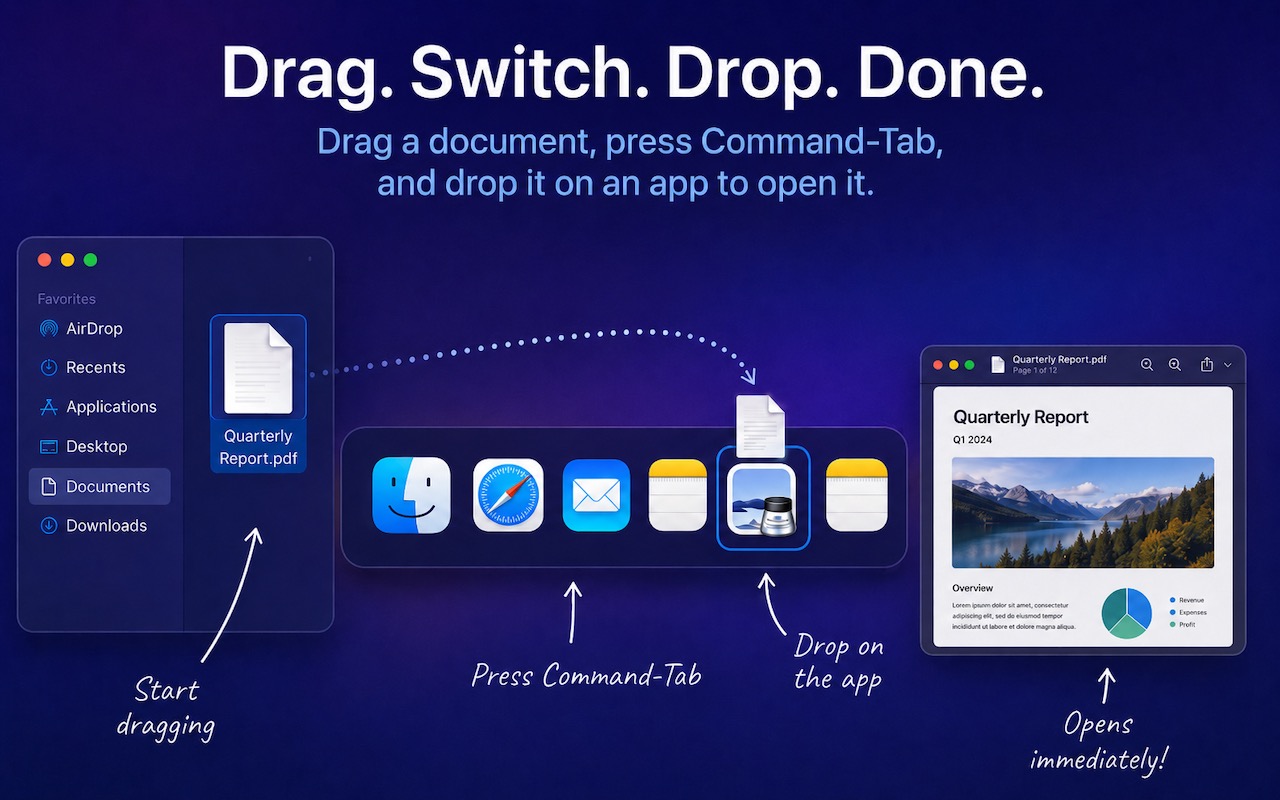
You undoubtedly know about pressing Command-Tab to bring up the macOS App Switcher and mousing to the app you want to switch to. Keyboard jockeys probably even know to keep holding Command down while pressing Tab or right-arrow to cycle to the right (press Shift-Tab, the grave accent/tilde key, or left-arrow to cycle to the left), before releasing the Command key to switch. But did you know you can start dragging something—say a document from the Finder—with your right hand, press Command-Tab with your left hand, and then drop the document on an app in the App Switcher to open it? Go ahead, give it a try!

(Featured image generated by Adam Engst with ChatGPT)
Social Media: Did you know you can open a file quickly by dragging it onto an app in the macOS App Switcher? Start dragging, press Command-Tab, and drop. It’s one of the App Switcher’s many tricks.
Recent Posts

Aug. 07, 2026
Prepare for macOS, iOS, and iPadOS OS 27 by Updating to 26.6

Aug. 07, 2026
WhatCable Reports on Your USB-C Cables

Aug. 07, 2026
Be Careful When Offloading iPhone Apps

Aug. 07, 2026
Turn Off Unused Sharing Services on Your Mac

Aug. 07, 2026
AI-Powered Hack Shows Why Updates Are More Important Than Ever

Aug. 07, 2026
Don’t Delay Mac Purchases to the Last Minute

Aug. 07, 2026
How to Develop Safely with AI

Aug. 07, 2026
Eliminate Article Distractions with Safari Reader

Jul. 03, 2026
Never Miss a Meeting Again with In Your Face
Jul. 03, 2026
Drag Documents to Apps in the macOS App Switcher
View All Posts